
New Workday-Pro-Integrations Dumps For Preparing Workday Integrations Certified Workday Exam Well
Updated Workday-Pro-Integrations Dumps Questions Are Available [2026] For Passing Workday Exam
NEW QUESTION # 11
Refer to the following XML to answer the question below.
You are an integration developer and need to write XSLT to transform the output of an EIB which is using a web service enabled report to output worker data along with their dependents. You currently have a template which matches on wd:Report_Data/wd:Report_Entry for creating a record from each report entry.
Within the template which matches on wd:Report_Entry you would like to conditionally process the wd:
Dependents_Group elements by using an <xsl:apply-templates> element.
What XPath syntax would be used as the select for the apply templates so as to iterate over only the wd:
Dependents_Group elements where the dependent relationship is Child?
- A. wd:Dependents_Group/@wd:Relationship='Child'
- B. wd:Dependents_Group[wd:Relationship='Child']
- C. wd:Dependents_Group[@wd:Relationship='Child']
- D. wd:Dependents_Group/wd:Relationship='Child'
Answer: B
Explanation:
In Workday integrations, XSLT (Extensible Stylesheet Language Transformations) is commonly used to transform XML data, such as the output from an Enterprise Interface Builder (EIB) or a web service-enabled report, into a format suitable for third-party systems. In this scenario, you are tasked with writing XSLT to process the wd:Dependents_Group elements within a report output to iterate only over those where the dependent relationship is "Child." The correct XPath syntax for the select attribute of an <xsl:apply- templates> element is critical to ensure accurate data transformation.
Here's why option B is correct:
* XPath Syntax Explanation: In XPath, square brackets [ ] are used to specify predicates or conditions to filter elements. The condition wd:Relationship='Child' checks if the wd:Relationship element (or attribute, depending on the XML structure) has the value "Child." When applied to wd:
Dependents_Group, the expression wd:Dependents_Group[wd:Relationship='Child'] selects only those wd:Dependents_Group elements that contain a wd:Relationship child element with the value "Child."
* Context in XSLT: Within an <xsl:apply-templates> element, the select attribute uses XPath to specify which nodes to process. This syntax ensures that the template only applies to wd:Dependents_Group elements where the dependent is a child, aligning with the requirement to conditionally process only those specific dependents.
* XML Structure Alignment: Based on the provided XML snippet, wd:Dependents_Group likely contains child elements or attributes, including wd:Relationship. The correct XPath assumes wd:Relationship is an element (not an attribute), as is common in Workday XML structures. Therefore, wd:
Dependents_Group[wd:Relationship='Child'] is the appropriate syntax to filter and iterate over the desired elements.
Why not the other options?
* A. wd:Dependents_Group[@wd:Relationship='Child']: This syntax uses @ to indicate that wd:
Relationship is an attribute of wd:Dependents_Group, not an element. If wd:Relationship is not defined as an attribute in the XML (as is typical in Workday's XML structure, where it's often an element), this would result in no matches, making it incorrect.
* C. wd:Dependents_Group/wd:Relationship='Child': This is not a valid XPath expression for a predicate.
It attempts to navigate to wd:Relationship as a child but does not use square brackets [ ] to create a filtering condition. This would be interpreted as selecting wd:Relationship elements under wd:
Dependents_Group, but it wouldn't filter based on the value "Child" correctly within an <xsl:apply- templates> context.
* D. wd:Dependents_Group/@wd:Relationship='Child': Similar to option A, this assumes wd:
Relationship is an attribute, which may not match the XML structure. Additionally, it lacks the predicate structure [ ], making it invalid for filtering in this context.
To implement this in XSLT:
* You would write an <xsl:apply-templates> element within your template matching wd:Report_Entry, with the select attribute set to wd:Dependents_Group[wd:Relationship='Child']. This ensures that only wd:Dependents_Group elements with a wd:Relationship value of "Child" are processed by the corresponding templates, effectively filtering out other dependent relationships (e.g., Spouse, Parent) in the transformation.
This approach ensures the XSLT transformation aligns with Workday's XML structure and integration requirements for processing worker data and dependents in an EIB or web service-enabled report.
Workday Pro Integrations Study Guide: Section on "XSLT Transformations for Workday Integrations" - Details the use of XPath in XSLT for filtering XML elements, including predicates for conditional processing.
Workday EIB and Web Services Guide: Chapter on "XML and XSLT for Report Data" - Explains the structure of Workday XML (e.g., wd:Dependents_Group, wd:Relationship) and how to use XPath to navigate and filter data.
Workday Reporting and Analytics Guide: Section on "Web Service-Enabled Reports" - Covers integrating report outputs with XSLT for transformations, including examples of filtering elements based on values.
NEW QUESTION # 12
You have been asked to create an integration using the Core Connector: Worker with DIS template. The vendor has requested that you only include employees who are based in the San Francisco area that are on leave.
How do you configure your integration so that only workers who meet the requirements are included in the output file?
- A. Configure a Boolean field for Population Eligibility for San Francisco workers on leave.
- B. Configure the integration attributes to include workers in San Francisco on leave.
- C. Configure a Boolean field for San Francisco workers on leave in the field overrides.
- D. Configure a Boolean field for San Francisco workers on leave under the field attributes.
Answer: A
Explanation:
When using Core Connector: Worker with DIS, to restrict the population to employees who:
* Are on leave, and
* Are located in San Francisco
You must configure Population Eligibility, which is the only place to filter the worker population included in the connector output.
From Workday Pro documentation:
"The Population Eligibility section defines which workers are eligible for extraction in the integration based on location, status, organization, and other conditions. Boolean calculated fields can be used here to define complex eligibility criteria." In this case:
* Create a Boolean calculated field that returns true for "On Leave AND Location = San Francisco"
* Use that field in Population Eligibility
Why the others are incorrect:
* A, D. Field Overrides and Field Attributes only modify what data is extracted-not who is included.
* C. Integration Attributes don't control population filtering.
Reference:Workday Pro: Core Connector Worker - Population Eligibility and Filtering LogicWorkday Community - Using Boolean Fields in Population Eligibility Rules
NEW QUESTION # 13
What is the task used to upload a new XSLT file for a pre-existing document transformation integration system?
- A. Edit Integration Attachment
- B. Edit XSLT Attachment Transformation
- C. Edit Integration Attachment Service
- D. Edit Integration Service Attachment
Answer: B
Explanation:
In Workday, when you need to upload a new XSLT (Extensible Stylesheet Language Transformations) file to modify or replace an existing transformation within a pre-existing document transformation integration system, the specific task required is "Edit XSLT Attachment Transformation." This task allows users to update the XSLT file that governs how XML data is transformed within the integration system without creating an entirely new transformation object.
Here's why this is the correct answer:
Workday's integration systems often rely on XSLT to transform XML data into the desired format for downstream systems or processes. When an XSLT file has already been associated with an integration system (e.g., as part of an Enterprise Interface Builder (EIB) or a Document Transformation Connector), updating it requires accessing the existing transformation configuration.
The "Edit XSLT Attachment Transformation" task enables users to upload a revised version of the XSLT file. This action replaces the previous file while maintaining the integration system's configuration, ensuring continuity without necessitating additional changes to the system itself.
This task is distinct from other options because it specifically targets the transformation logic (XSLT) rather than broader integration components or services.
Let's examine why the other options are incorrect:
A . Edit Integration Attachment: This task is used to manage generic attachments associated with an integration, such as input files or supplementary documents, but it does not specifically address XSLT transformations. It lacks the precision required for updating transformation logic.
B . Edit Integration Attachment Service: This is not a recognized task in Workday's integration framework. It appears to be a conflation of terms and does not align with the documented processes for managing XSLT files.
D . Edit Integration Service Attachment: While this might suggest modifying an attachment related to an integration service, it is not the correct task for handling XSLT files in a document transformation context. Workday documentation consistently points to "Edit XSLT Attachment Transformation" for this purpose.
The process typically involves:
Navigating to the integration system in Workday (e.g., via the "Search" bar by entering the integration system name).
Using the related actions menu to select "Integration System" > "Edit XSLT Attachment Transformation." Uploading the new XSLT file, which must comply with Workday's size limitations (e.g., 30 MB for attachments) and be properly formatted.
Saving the changes, which updates the transformation logic without altering other integration configurations.
This approach ensures that transformations remain aligned with business requirements, such as reformatting data for compatibility with external systems, while leveraging Workday's secure and efficient integration tools.
:
Workday Pro Integrations Study Guide: "Configure Integration System - TRANSFORMATION" section, which details the use of XSLT files in document transformations and the associated tasks.
Workday Documentation: "Enterprise Interface Builder (EIB)" and "Document Transformation Connector" sections, where the "Edit XSLT Attachment Transformation" task is outlined for updating XSLT files.
Workday Community: Guidance on managing XSLT attachments, confirming this task as the standard method for updating pre-existing transformations.
NEW QUESTION # 14
You have been asked to refine a report which outputs one row per worker and is being used in an integration that sends worker data to one of your third-party systems. The integration should only send workers who have been hired in the last 30 days. Where in the custom report definition can you specify a condition that would include only workers who have been hired in the last 30 days?
- A. Output
- B. Subfilter
- C. Filter
- D. Columns
Answer: C
Explanation:
In Workday, when refining a custom report to include specific conditions such as limiting the output to workers hired in the last 30 days, the appropriate place to specify this condition is within the Filter tab of the custom report definition. The Filter tab allows you to define criteria that determine which instances of the primary business object (in this case, "Worker") are included in the report output. This is critical for integrations, as the filtered data ensures that only relevant records are sent to the third-party system.
The requirement here is to restrict the report to workers hired within the last 30 days. In Workday reporting, this can be achieved by adding a filter condition on the "Hire Date" field of the Worker business object. Specifically, you would configure the filter to compare the "Hire Date" against a dynamic date range, such as "Current Date minus 30 days" to "Current Date." This ensures the report dynamically adjusts to include only workers hired in the last 30 days each time it runs, which aligns with the needs of an integration sending real-time data to a third-party system.
Here's why the other options are incorrect:
A . Subfilter: Subfilters in Workday are used to further refine data within a related business object or a subset of data already filtered by the primary filter. They are not the primary mechanism for applying a condition to the main dataset (e.g., all workers). For this scenario, a subfilter would be unnecessary since the condition applies directly to the Worker business object, not a related object.
B . Output: The Output section of a custom report definition controls how the report is displayed or delivered (e.g., file format, scheduling), not the data selection criteria. It does not allow for specifying conditions like hire date ranges.
C . Columns: The Columns tab defines which fields are displayed in the report output (e.g., Worker ID, Name, Hire Date). While you can add the "Hire Date" field here for visibility, it does not control which workers are included in the report-that is the role of the Filter tab.
To implement this in practice:
In the custom report definition, go to the Filter tab.
Add a new filter condition.
Select the "Hire Date" field from the Worker business object.
Set the operator to "in the range" and define the range as "Current Date - 30 days" to "Current Date" (using dynamic date functions available in Workday).
Save and test the report to ensure it returns only workers hired within the last 30 days.
This filtered report can then be enabled as a web service (via the Advanced tab) or used in an Enterprise Interface Builder (EIB) or Workday Studio integration to send the data to the third-party system, meeting the integration requirement.
Reference from Workday Pro Integrations Study Guide:
Workday Report Writer Fundamentals: Section on "Creating and Managing Filters" explains how filters are used to limit report data based on specific conditions, such as date ranges.
Integration System Fundamentals: Discusses how custom reports serve as data sources for integrations and the importance of filters in defining the dataset.
Core Connectors & Document Transformation: Highlights the use of filtered custom reports in outbound integrations to third-party systems.
NEW QUESTION # 15
How many integration systems can an ISU be assigned to concurrently?
- A. Three
- B. Unlimited
- C. One
- D. Five
Answer: B
Explanation:
The Integration System User (ISU) in Workday is a specialized user account designed for automation and system-level integrations. It can be assigned to any number of integration systems concurrently - there is no limit.
From Workday documentation and Pro training:
"A single ISU can be assigned to multiple integration systems across tenants and environments, provided it has the correct permissions and security group assignments. Workday does not impose a hard limit on the number of systems an ISU can be linked to." This design provides scalability for environments with multiple integrations (e.g., EIBs, Core Connectors, Studio integrations) without needing to create redundant users.
Incorrect Options Explained:
* A, B, C: These options imply arbitrary limits (one, three, five), which do not exist in Workday's ISU architecture.
References:
Workday Pro: Integrations - Integration System Security User Management Workday Community: How ISUs Function in Multi-Integration Environments
NEW QUESTION # 16
You have a population of workers who have put multiple names in their Legal Name - First Name Workday delivered field. Your third-party vendor only accepts one-word first names. For workers that have included a middle name, the first and middle names are separated by a single space. You have been asked to implement the following logic:
* Extract the value before the single space from the Legal Name - First Name Workday delivered field.
* Count the number of characters in the extracted value.
* Identify if the number of characters is greater than.
* If the count of characters is greater than 0, use the extracted value. Otherwise, use the Legal Name - First Name Workday delivered field.
What functions are needed to achieve the end goal?
- A. Extract Single Instance, Text Length, Numeric Constant, True/False Condition
- B. Text Constant, Substring Text, Arithmetic Calculation, Evaluate Expression
- C. Format Text, Convert Text to Number, True/False Condition, Evaluate Expression
- D. Substring Text, Text Length, True/False Condition, Evaluate Expression
Answer: D
Explanation:
The task involves processing the "Legal Name - First Name" field in Workday to meet a third-party vendor's requirement of accepting only one-word first names. For workers with multiple names (e.g., "John Paul"), separated by a single space, the logic must:
* Extract the value before the space (e.g., "John" from "John Paul").
* Count the characters in the extracted value.
* Check if the character count is greater than 0.
* Use the extracted value if the count is greater than 0; otherwise, use the original "Legal Name - First Name" field.
This logic is typically implemented in Workday using calculated fields within a custom report or integration (e.g., EIB or Studio). Let's break down the required functions:
* Substring Text:This function is needed to extract the portion of the "Legal Name - First Name" field before the space. In Workday, the Substring Text function allows you to specify a starting position (e.
g., 1) and extract text up to a delimiter (e.g., a space). For example, Substring Text("John Paul", 1, Index of " ") would return "John."
* Text Length:After extracting the substring (e.g., "John"), the logic requires counting its characters to ensure it's valid. The Text Length function returns the number of characters in a text string (e.g., Text Length("John") = 4). This is critical for the condition check.
* True/False Condition:The logic involves a conditional check: "Is the number of characters greater than
0?" The True/False Condition function evaluates this (e.g., Text Length(extracted value) > 0), returning True if the extracted value exists and False if it's empty (e.g., if no space exists or extraction fails).
* Evaluate Expression:This function implements the if-then-else logic: if the character count is greater than 0, use the extracted value (e.g., "John"); otherwise, use the original "Legal Name - First Name" field (e.g., "John Paul"). Evaluate Expression combines the True/False Condition with the output values.
* Option Analysis:
* A. Extract Single Instance, Text Length, Numeric Constant, True/False Condition:
Incorrect. Extract Single Instance is used for multi-instance fields (e.g., selecting one dependent), not text parsing. Numeric Constant isn't needed here, as no fixed number is involved.
* B. Text Constant, Substring Text, Arithmetic Calculation, Evaluate Expression: Incorrect.
Text Constant provides a fixed string (e.g., "abc"), not dynamic extraction. Arithmetic Calculation isn't required, as this is a text length check, not a numeric operation beyond comparison.
* C. Format Text, Convert Text to Number, True/False Condition, Evaluate Expression:
Incorrect. Format Text adjusts text appearance (e.g., capitalization), not extraction. Convert Text to Number isn't needed, as Text Length already returns a number.
* D. Substring Text, Text Length, True/False Condition, Evaluate Expression: Correct. These functions align perfectly with the requirements: extract the first name, count its length, check the condition, and choose the output.
* Implementation:
* Create a calculated field usingSubstring Textto extract text before the space.
* UseText Lengthto count characters in the extracted value.
* UseTrue/False Conditionto check if the length > 0.
* UseEvaluate Expressionto return the extracted value or the original field based on the condition.
References from Workday Pro Integrations Study Guide:
* Workday Calculated Fields: Section on "Text Functions" details Substring Text and Text Length usage.
* Integration System Fundamentals: Explains how calculated fields with conditions (True/False, Evaluate Expression) transform data for third-party systems.
* Core Connectors & Document Transformation: Highlights text manipulation for outbound integration requirements.
NEW QUESTION # 17
What is the purpose of granting an ISU modify access to the Integration Event domain via an ISSG?
- A. To have the ISU own the integration schedule.
- B. To log into the user interface as the ISU and launch the integration.
- C. To let the ISU configure integration attributes and maps.
- D. To build the integration system as the ISU.
Answer: C
Explanation:
Understanding ISUs and Integration Systems in Workday
* Integration System User (ISU):An ISU is a specialized user account in Workday designed for integrations, functioning as a service account to authenticate and execute integration processes. ISUs are created using the "Create Integration System User" task and are typically configured with settings like disabling UI sessions and setting long session timeouts (e.g., 0 minutes) to prevent expiration during automated processes. ISUs are not human users but are instead programmatic accounts used for API calls, EIBs, Core Connectors, or other integration mechanisms.
* Integration Systems:In Workday, an "integration system" refers to the configuration or setup of an integration, such as an External Integration Business (EIB), Core Connector, or custom integration via web services. Integration systems are defined to handle data exchange between Workday and external systems, and they require authentication, often via an ISU, to execute tasks like data retrieval, transformation, or posting.
* Assigning ISUs to Integration Systems:ISUs are used to authenticate and authorize integration systems to interact with Workday. When configuring an integration system, you assign an ISU to provide the credentials needed for the integration to run. This assignment ensures that theintegration can access Workday data and functionalities based on the security permissions granted to the ISU via its associated Integration System Security Group (ISSG).
* Limitation on Assignment:Workday's security model imposes restrictions to maintain control and auditability. Specifically, an ISU is designed to be tied to a single integration system to ensure clear accountability, prevent conflicts, and simplify security management. This limitation prevents an ISU from being reused across multiple unrelated integration systems, reducing the risk of unintended access or data leakage.
Evaluating Each Option
Let's assess each option based on Workday's integration and security practices:
Option A: An ISU can be assigned to five integration systems.
* Analysis:This is incorrect. Workday does not impose a specific numerical limit like "five" for ISU assignments to integration systems. Instead, the limitation is more restrictive: an ISU is typically assigned to only one integration system to ensure focused security and accountability. Allowing an ISU to serve multiple systems could lead to confusion, overlapping permissions, or security risks, which Workday's design avoids.
* Why It Doesn't Fit:There's no documentation or standard practice in Workday Pro Integrations suggesting a limit of five integration systems per ISU. This option is arbitrary and inconsistent with Workday's security model.
Option B: An ISU can be assigned to an unlimited number of integration systems.
* Analysis:This is incorrect. Workday's security best practices do not allow an ISU to be assigned to an unlimited number of integration systems. Allowing this would create security vulnerabilities, as an ISU' s permissions (via its ISSG) could be applied across multiple unrelated systems, potentially leading to unauthorized access or data conflicts. Workday enforces a one-to-one or tightly controlled relationship to maintain auditability and security.
* Why It Doesn't Fit:The principle of least privilege and clear accountability in Workday integrations requires limiting an ISU's scope, not allowing unlimited assignments.
Option C: An ISU can be assigned to only one integration system.
* Analysis:This is correct. In Workday, an ISU is typically assigned to a single integration system to ensure that its credentials and permissions are tightly scoped. This aligns with Workday's security model, where ISUs are created for specific integration purposes (e.g., an EIB, Core Connector, or web service integration). When configuring an integration system, you specify the ISU in the integration setup (e.g., under "Integration System Attributes" or "Authentication" settings), and it is not reused across multiple systems to prevent conflicts or unintended access. This limitation ensures traceability and security, as the ISU's actions can be audited within the context of that single integration.
* Why It Fits:Workday documentation and best practices, including training materials and community forums, emphasize that ISUs are dedicated to specific integrations. For example, when creating an EIB or Core Connector, you assign an ISU, and it is not shared across other integrations unless explicitly reconfigured, which is rare and discouraged for security reasons.
Option D: An ISU can only be assigned to an ISSG and not an integration system.
* Analysis:This is incorrect. While ISUs are indeed assigned to ISSGs to inherit security permissions (as established in Question 26), they are also assigned to integration systems to provide authentication and authorization for executing integration tasks. The ISU's role includes both: it belongs to an ISSG for permissions and is linked to an integration system for execution. Saying it can only be assigned to an ISSG and not an integration system misrepresents Workday's design, as ISUs are explicitly configured in integration systems (e.g., EIB, Core Connector) to run processes.
* Why It Doesn't Fit:ISUs are integral to integration systems, providing credentials for API calls or data exchange. Excluding assignment to integration systems contradicts Workday's integration framework.
Final Verification
The correct answer is Option C, as Workday limits an ISU to a single integration system to ensure security, accountability, and clarity in integration operations. This aligns with the principle of least privilege, where ISUs are scoped narrowly to avoid overexposure. For example, when setting up a Core Connector: Job Postings (as in Question 25), you assign an ISU specifically for that integration, not multiple ones, unless reconfiguring for a different purpose, which is atypical.
Supporting Documentation
The reasoning is based on Workday Pro Integrations security practices, including:
* Workday Community documentation on creating and managing ISUs and integration systems.
* Tutorials on configuring EIBs, Core Connectors, and web services, which show assigning ISUs to specific integrations (e.g.,Workday Advanced Studio Tutorial).
* Integration security overviews from implementation partners (e.g., NetIQ, Microsoft Learn, Reco.ai) emphasizing one ISU per integration for security.
* Community discussions on Reddit and Workday forums reinforcing that ISUs are tied to single integrations for auditability (r/workday on Reddit).
This question focuses on the purpose of granting an Integration System User (ISU) modify access to the Integration Event domain via an Integration System Security Group (ISSG) in Workday Pro Integrations. Let' s analyze the role of the ISU, the Integration Event domain, and evaluate each option to determine the correct answer.
Understanding ISUs, ISSGs, and the Integration Event Domain
* Integration System User (ISU):As described in previous questions, an ISU is a service account for integrations, used to authenticate and execute integration processes in Workday. ISUs are assigned to ISSGs to inherit security permissions and are linked to specific integration systems (e.g., EIBs, Core Connectors) for execution.
* Integration System Security Group (ISSG):An ISSG is a security group that defines the permissions for ISUs, controlling what data and functionalities they can access or modify. ISSGs can be unconstrained (access all instances) or constrained (access specific instances based on context).
Permissions are granted via domain security policies, such as "Get," "Put," "View," or "Modify," applied to Workday domains.
* Integration Event Domain:In Workday, the Integration Event domain (or Integration Events security domain) governs access to integration-related activities, such as managing integration events, schedules, attributes, mappings, and logs. This domain is critical for integrations, as it controls the ability to create, modify, or view integration configurations and runtime events.
* "Modify" access to the Integration Event domain allows the ISU to make changes to integration configurations, such as attributes (e.g., file names, endpoints), mappings (e.g., data transformations), and event settings (e.g., schedules or triggers).
* This domain does not typically grant UI access or ownership of schedules but focuses on configuration and runtime control.
* Purpose of Granting Modify Access:Granting an ISU modify access to the Integration Event domain via an ISSG enables the ISU to perform configuration tasks for integrations, ensuring the integration system can adapt or update its settings programmatically. This is essential for automated integrations that need to adjust mappings, attributes, or event triggers without manual intervention. However, ISUs are not designed for UI interaction or administrative ownership, as they are service accounts.
Evaluating Each Option
Let's assess each option based on Workday's security and integration model:
Option A: To have the ISU own the integration schedule.
* Analysis:This is incorrect. ISUs do not "own" integration schedules or any other integration components. Ownership is not a concept applicable to ISUs, which are service accounts for execution, not administrative entities. Integration schedules are configured within the integration system (e.g., EIB or Core Connector) and managed by administrators or users with appropriate security roles, not by ISUs. Modify access to the Integration Event domain allows changes to schedules, but it doesn't imply ownership.
* Why It Doesn't Fit:ISUs lack administrative control or ownership; they execute based on permissions, not manage schedules as owners. This misinterprets the ISU's role.
Option B: To let the ISU configure integration attributes and maps.
* Analysis:This is correct. Granting modify access to the Integration Event domain allows the ISU to alter integration configurations, including attributes (e.g., file names, endpoints, timeouts) and mappings (e.g., data transformations like worker subtype mappings from Question 25). The Integration Event domain governs these configuration elements, and "Modify" permission enables the ISU to update them programmatically during integration execution. This is a standard use case for ISUs in automated integrations, ensuring flexibility without manual intervention.
* Why It Fits:Workday's documentation and training materials indicate that the Integration Event domain controls integration configuration tasks. For example, in an EIB or Core Connector, an ISU with modify access can adjust mappings or attributes, as seen in tutorials on integration setup (Workday Advanced Studio Tutorial). This aligns with the ISU's role as a service account for dynamic configuration.
Option C: To log into the user interface as the ISU and launch the integration.
* Analysis:This is incorrect. ISUs are not intended for UI interaction. When creating an ISU, a best practice is to disable UI sessions (e.g., set "Allow UI Sessions" to "No") and configure a session timeout of 0 minutes to prevent expiration during automation. ISUs operate programmaticallyvia APIs or integration systems, not through the Workday UI. Modify access to the Integration Event domain enables configuration changes, not UI login or manual launching.
* Why It Doesn't Fit:Logging into the UI contradicts ISU design, as they are service accounts, not user accounts. This option misrepresents their purpose.
Option D: To build the integration system as the ISU.
* Analysis:This is incorrect. ISUs do not "build" integration systems; they execute or configure existing integrations based on permissions. Building an integration system (e.g., creating EIBs, Core Connectors, or web services) is an administrative task performed by users with appropriate security roles (e.g., Integration Build domain access), not ISUs. Modify access to the Integration Event domain allows configuration changes, not the creation or design of integration systems.
* Why It Doesn't Fit:ISUs lack the authority or capability to build integrations; they are for runtime execution and configuration, not development or design.
Final Verification
The correct answer is Option B, as granting an ISU modify access to the Integration Event domain via an ISSG enables it to configure integration attributes (e.g., file names, endpoints) and maps (e.g., data transformations), which are critical for dynamic integration operations. This aligns with Workday's security model, where ISUs handle automated tasks within defined permissions, not UI interaction, ownership, or system building.
For example, in the Core Connector: Job Postings from Question 25, an ISU with modify access to Integration Event could update the filename pattern or worker subtype mappings, ensuring the integration adapts to vendor requirements without manual intervention. This is consistent with Workday's design for integration automation.
Supporting Documentation
The reasoning is based on Workday Pro Integrations security practices, including:
* Workday Community documentation on ISUs, ISSGs, and domain security (e.g., Integration Event domain permissions).
* Tutorials on configuring EIBs and Core Connectors, showing ISUs modifying attributes and mappings (Workday Advanced Studio Tutorial).
* Integration security overviews from implementation partners (e.g., NetIQ, Microsoft Learn, Reco.ai) detailing domain access for ISUs.
* Community discussions on Reddit and Workday forums reinforcing ISU roles for configuration, not UI or ownership (r/workday on Reddit).
NEW QUESTION # 18
What is the purpose of granting an ISU modify access to the Integration Event domain via an ISSG?
- A. To have the ISU own the integration schedule.
- B. To log into the user interface as the ISU and launch the integration.
- C. To let the ISU configure integration attributes and maps.
- D. To build the integration system as the ISU.
Answer: C
Explanation:
Understanding ISUs and Integration Systems in Workday
* Integration System User (ISU): An ISU is a specialized user account in Workday designed for integrations, functioning as a service account to authenticate and execute integration processes. ISUs are created using the "Create Integration System User" task and are typically configured with settings like disabling UI sessions and setting long session timeouts (e.g., 0 minutes) to prevent expiration during automated processes. ISUs are not human users but are instead programmatic accounts used for API calls, EIBs, Core Connectors, or other integration mechanisms.
* Integration Systems: In Workday, an "integration system" refers to the configuration or setup of an integration, such as an External Integration Business (EIB), Core Connector, or custom integration via web services. Integration systems are defined to handle data exchange between Workday and external systems, and they require authentication, often via an ISU, to execute tasks like data retrieval, transformation, or posting.
* Assigning ISUs to Integration Systems: ISUs are used to authenticate and authorize integration systems to interact with Workday. When configuring an integration system, you assign an ISU to provide the credentials needed for the integration to run. This assignment ensures that the integration can access Workday data and functionalities based on the security permissions granted to the ISU via its associated Integration System Security Group (ISSG).
* Limitation on Assignment: Workday's security model imposes restrictions to maintain control and auditability. Specifically, an ISU is designed to be tied to a single integration system to ensure clear accountability, prevent conflicts, and simplify security management. This limitation prevents an ISU from being reused across multiple unrelated integration systems, reducing the risk of unintended access or data leakage.
Evaluating Each Option
Let's assess each option based on Workday's integration and security practices:
Option A: An ISU can be assigned to five integration systems.
* Analysis: This is incorrect. Workday does not impose a specific numerical limit like "five" for ISU assignments to integration systems. Instead, the limitation is more restrictive: an ISU is typically assigned to only one integration system to ensure focused security and accountability. Allowing an ISU to serve multiple systems could lead to confusion, overlapping permissions, or security risks, which Workday's design avoids.
* Why It Doesn't Fit: There's no documentation or standard practice in Workday Pro Integrations suggesting a limit of five integration systems per ISU. This option is arbitrary and inconsistent with Workday's security model.
Option B: An ISU can be assigned to an unlimited number of integration systems.
* Analysis: This is incorrect. Workday's security best practices do not allow an ISU to be assigned to an unlimited number of integration systems. Allowing this would create security vulnerabilities, as an ISU' s permissions (via its ISSG) could be applied across multiple unrelated systems, potentially leading to unauthorized access or data conflicts. Workday enforces a one-to-one or tightly controlled relationship to maintain auditability and security.
* Why It Doesn't Fit: The principle of least privilege and clear accountability in Workday integrations requires limiting an ISU's scope, not allowing unlimited assignments.
Option C: An ISU can be assigned to only one integration system.
* Analysis: This is correct. In Workday, an ISU is typically assigned to a single integration system to ensure that its credentials and permissions are tightly scoped. This aligns with Workday's security model, where ISUs are created for specific integration purposes (e.g., an EIB, Core Connector, or web service integration). When configuring an integration system, you specify the ISU in the integration setup (e.g., under "Integration System Attributes" or "Authentication" settings), and it is not reused across multiple systems to prevent conflicts or unintended access. This limitation ensures traceability and security, as the ISU's actions can be audited within the context of that single integration.
* Why It Fits: Workday documentation and best practices, including training materials and community forums, emphasize that ISUs are dedicated to specific integrations. For example, when creating an EIB or Core Connector, you assign an ISU, and it is not shared across other integrations unless explicitly reconfigured, which is rare and discouraged for security reasons.
Option D: An ISU can only be assigned to an ISSG and not an integration system.
* Analysis: This is incorrect. While ISUs are indeed assigned to ISSGs to inherit security permissions (as established in Question 26), they are also assigned to integration systems to provide authentication and authorization for executing integration tasks. The ISU's role includes both: it belongs to an ISSG for permissions and is linked to an integration system for execution. Saying it can only be assigned to an ISSG and not an integration system misrepresents Workday's design, as ISUs are explicitly configured in integration systems (e.g., EIB, Core Connector) to run processes.
* Why It Doesn't Fit: ISUs are integral to integration systems, providing credentials for API calls or data exchange. Excluding assignment to integration systems contradicts Workday's integration framework.
Final Verification
The correct answer is Option C, as Workday limits an ISU to a single integration system to ensure security, accountability, and clarity in integration operations. This aligns with the principle of least privilege, where ISUs are scoped narrowly to avoid overexposure. For example, when setting up a Core Connector: Job Postings (as in Question 25), you assign an ISU specifically for that integration, not multiple ones, unless reconfiguring for a different purpose, which is atypical.
Supporting Documentation
The reasoning is based on Workday Pro Integrations security practices, including:
* Workday Community documentation on creating and managing ISUs and integration systems.
* Tutorials on configuring EIBs, Core Connectors, and web services, which show assigning ISUs to specific integrations (e.g., Workday Advanced Studio Tutorial).
* Integration security overviews from implementation partners (e.g., NetIQ, Microsoft Learn, Reco.ai) emphasizing one ISU per integration for security.
* Community discussions on Reddit and Workday forums reinforcing that ISUs are tied to single integrations for auditability (r/workday on Reddit).
This question focuses on the purpose of granting an Integration System User (ISU) modify access to the Integration Event domain via an Integration System Security Group (ISSG) in Workday Pro Integrations. Let' s analyze the role of the ISU, the Integration Event domain, and evaluate each option to determine the correct answer.
Understanding ISUs, ISSGs, and the Integration Event Domain
* Integration System User (ISU): As described in previous questions, an ISU is a service account for integrations, used to authenticate and execute integration processes in Workday. ISUs are assigned to ISSGs to inherit security permissions and are linked to specific integration systems (e.g., EIBs, Core Connectors) for execution.
* Integration System Security Group (ISSG): An ISSG is a security group that defines the permissions for ISUs, controlling what data and functionalities they can access or modify. ISSGs can be unconstrained (access all instances) or constrained (access specific instances based on context). Permissions are granted via domain security policies, such as "Get," "Put," "View," or "Modify," applied to Workday domains.
* Integration Event Domain: In Workday, the Integration Event domain (or Integration Events security domain) governs access to integration-related activities, such as managing integration events, schedules, attributes, mappings, and logs. This domain is critical for integrations, as it controls the ability to create, modify, or view integration configurations and runtime events.
* "Modify" access to the Integration Event domain allows the ISU to make changes to integration configurations, such as attributes (e.g., file names, endpoints), mappings (e.g., data transformations), and event settings (e.g., schedules or triggers).
* This domain does not typically grant UI access or ownership of schedules but focuses on configuration and runtime control.
* Purpose of Granting Modify Access: Granting an ISU modify access to the Integration Event domain via an ISSG enables the ISU to perform configuration tasks for integrations, ensuring the integration system can adapt or update its settings programmatically. This is essential for automated integrations that need to adjust mappings, attributes, or event triggers without manual intervention. However, ISUs are not designed for UI interaction or administrative ownership, as they are service accounts.
Evaluating Each Option
Let's assess each option based on Workday's security and integration model:
Option A: To have the ISU own the integration schedule.
* Analysis: This is incorrect. ISUs do not "own" integration schedules or any other integration components. Ownership is not a concept applicable to ISUs, which are service accounts for execution, not administrative entities. Integration schedules are configured within the integration system (e.g., EIB or Core Connector) and managed by administrators or users with appropriate security roles, not by ISUs. Modify access to the Integration Event domain allows changes to schedules, but it doesn't imply ownership.
* Why It Doesn't Fit: ISUs lack administrative control or ownership; they execute based on permissions, not manage schedules as owners. This misinterprets the ISU's role.
Option B: To let the ISU configure integration attributes and maps.
* Analysis: This is correct. Granting modify access to the Integration Event domain allows the ISU to alter integration configurations, including attributes (e.g., file names, endpoints, timeouts) and mappings (e.g., data transformations like worker subtype mappings from Question 25). The Integration Event domain governs these configuration elements, and "Modify" permission enables the ISU to update them programmatically during integration execution. This is a standard use case for ISUs in automated integrations, ensuring flexibility without manual intervention.
* Why It Fits: Workday's documentation and training materials indicate that the Integration Event domain controls integration configuration tasks. For example, in an EIB or Core Connector, an ISU with modify access can adjust mappings or attributes, as seen in tutorials on integration setup (Workday Advanced Studio Tutorial). This aligns with the ISU's role as a service account for dynamic configuration.
Option C: To log into the user interface as the ISU and launch the integration.
* Analysis: This is incorrect. ISUs are not intended for UI interaction. When creating an ISU, a best practice is to disable UI sessions (e.g., set "Allow UI Sessions" to "No") and configure a session timeout of 0 minutes to prevent expiration during automation. ISUs operate programmatically via APIs or integration systems, not through the Workday UI. Modify access to the Integration Event domain enables configuration changes, not UI login or manual launching.
* Why It Doesn't Fit: Logging into the UI contradicts ISU design, as they are service accounts, not user accounts. This option misrepresents their purpose.
Option D: To build the integration system as the ISU.
* Analysis: This is incorrect. ISUs do not "build" integration systems; they execute or configure existing integrations based on permissions. Building an integration system (e.g., creating EIBs, Core Connectors, or web services) is an administrative task performed by users with appropriate security roles (e.g., Integration Build domain access), not ISUs. Modify access to the Integration Event domain allows configuration changes, not the creation or design of integration systems.
* Why It Doesn't Fit: ISUs lack the authority or capability to build integrations; they are for runtime execution and configuration, not development or design.
Final Verification
The correct answer is Option B, as granting an ISU modify access to the Integration Event domain via an ISSG enables it to configure integration attributes (e.g., file names, endpoints) and maps (e.g., data transformations), which are critical for dynamic integration operations. This aligns with Workday's security model, where ISUs handle automated tasks within defined permissions, not UI interaction, ownership, or system building.
For example, in the Core Connector: Job Postings from Question 25, an ISU with modify access to Integration Event could update the filename pattern or worker subtype mappings, ensuring the integration adapts to vendor requirements without manual intervention. This is consistent with Workday's design for integration automation.
Supporting Documentation
The reasoning is based on Workday Pro Integrations security practices, including:
* Workday Community documentation on ISUs, ISSGs, and domain security (e.g., Integration Event domain permissions).
* Tutorials on configuring EIBs and Core Connectors, showing ISUs modifying attributes and mappings (Workday Advanced Studio Tutorial).
* Integration security overviews from implementation partners (e.g., NetIQ, Microsoft Learn, Reco.ai) detailing domain access for ISUs.
* Community discussions on Reddit and Workday forums reinforcing ISU roles for configuration, not UI or ownership (r/workday on Reddit).
NEW QUESTION # 19
Refer to the following scenario to answer the question below.
You have been asked to build an integration using the Core Connector: Worker template and should leverage the Data Initialization Service (DIS). The integration will be used to export a full file (no change detection) for employees only and will include personal data.
What configuration is required to ensure that only employees, and not contingent workers, are output by this integration?
- A. Configure worker type in the Integration Field Attributes.
- B. Configure eligibility in the Integration Field Overrides.
- C. Configure a map for worker type in the Integration Maps.
- D. Configure the Integration Population Eligibility.
Answer: D
Explanation:
The scenario involves a Core Connector: Worker integration using DIS to export a full file of personal data, restricted to employees only (excluding contingent workers). In Workday, the Worker business object includes both employees and contingent workers, so a filter is needed to limit the population. Let's explore the configuration:
* Requirement:Ensure the integration outputs only employees, not contingent workers. This is a population-level filter, not a field transformation or override.
* Integration Population Eligibility:In Core Connectors, theConfigure Integration Population Eligibilityrelated action defines which workers are included in the integration's dataset. You can set eligibility rules, such as "Worker Type equals Employee" (or exclude "Contingent Worker"), to filter the population before data is extracted. For a full file export (no change detection), this ensures the entire output is limited to employees.
* Option Analysis:
* A. Configure the Integration Population Eligibility: Correct. This filters the worker population to employees only, aligning with the requirement at the dataset level.
* B. Configure a map for worker type in the Integration Maps: Incorrect. Integration Maps transform field values (e.g., "Employee" to "EMP"), not filter the population of workers included in the extract.
* C. Configure worker type in the Integration Field Attributes: Incorrect. Integration Field Attributes refine how a field is output (e.g., phone type), not the overall population eligibility.
* D. Configure eligibility in the Integration Field Overrides: Incorrect. Integration Field Overrides replace field values with custom data (e.g., a calculated field), not define the population of workers.
* Implementation:
* Edit the Core Connector: Worker integration.
* Use the related actionConfigure Integration Population Eligibility.
* Add a rule: "Worker Type equals Employee" (or exclude "Contingent Worker").
* Save and test to ensure only employee data is exported.
References from Workday Pro Integrations Study Guide:
* Core Connectors & Document Transformation: Section on "Configuring Integration Population Eligibility" explains filtering the worker population for outbound integrations.
* Integration System Fundamentals: Discusses population scoping in Core Connectors to meet specific export criteria.
NEW QUESTION # 20
Your manager has asked for a value on their dashboard for how many days away the birthdays are of their direct reports. The format of the output should be [Worker's Name]'s birthday is in [X] days, where you must calculate the number of days until a Worker's next birthday. An example output is "Logan McNeil's birthday is in 103 days." Which calculated field functions do you need to accomplish this?
- A. Format Date, Increment or Decrement Date, Extract Single Instance, Format Text
- B. Date Difference, Format Number, Text Constant, Concatenate Text
- C. Increment or Decrement Date, Format Number, Text Constant, Concatenate Text
- D. Build Date, Format Date, Extract Single Instance, Format Text
Answer: B
Explanation:
The requirement is to create a calculated field for a dashboard that displays a worker's name and the number of days until their next birthday in the format "[Worker's Name]'s birthday is in [X] days" (e.g., "Logan McNeil's birthday is in 103 days"). This involves calculating the difference between today's date and the worker's next birthday, then formatting the output as a text string. Let's break down the necessary functions:
* Date Difference:To calculate the number of days until the worker's next birthday, you need to determine the difference between the current date and the worker's birthdate in the current or next year (whichever is upcoming). The Date Difference function calculates the number of days between two dates. In this case:
* Use the worker's "Date of Birth" field (from the Worker business object).
* Adjust the year of the birthdate to the current year or next year (if the birthday has already passed this year) using additional logic.
* Calculate the difference from today's date to this adjusted birthday date. For example, if today is February 21, 2025, and Logan's birthday is June 4 (adjusted to June 4, 2025), Date Difference returns 103 days.
* Format Number:The result of Date Difference is a numeric value (e.g., 103). To ensure it displays cleanly in the output string (without decimals or unnecessary formatting), Format Number can be used to convert it to a simple integer string (e.g., "103").
* Text Constant:To build the output string, static text like "'s birthday is in " and " days" is needed. The Text Constant function provides fixed text values to include in the final concatenated result.
* Concatenate Text:The final step is to combine the worker's name (e.g., "Logan McNeil"), the static text, and the calculated days into one string. Concatenate Text merges multiple text values into a single output, such as "Logan McNeil" + "'s birthday is in " + "103" + " days".
* Option Analysis:
* A. Format Date, Increment or Decrement Date, Extract Single Instance, Format Text:
Incorrect. Format Date converts dates to strings but doesn't calculate differences. Increment or Decrement Date adjusts dates but isn't suited for finding days until a future event. Extract Single Instance is for multi-instance fields, not relevant here. Format Text adjusts text appearance, not numeric calculations.
* B. Build Date, Format Date, Extract Single Instance, Format Text: Incorrect. Build Date creates a date from components, useful for setting the next birthday, but lacks the difference calculation. Format Date and Extract Single Instance don't apply to the core need.
* C. Date Difference, Format Number, Text Constant, Concatenate Text: Correct. These functions cover calculating the days, formatting the number, adding static text, and building the final string.
* D. Increment or Decrement Date, Format Number, Text Constant, Concatenate Text:
Incorrect. Increment or Decrement Date can't directly calculate days to a future birthday without additional complexity; Date Difference is more appropriate.
* Implementation:
* UseDate Differenceto calculate days from today to the next birthday (adjusting the year dynamically with additional logic if needed).
* ApplyFormat Numberto ensure the result is a clean integer.
* UseText Constantfor static text ("'s birthday is in " and " days").
* UseConcatenate Textto combine Worker Name, static text, and the formatted number.
References from Workday Pro Integrations Study Guide:
* Workday Calculated Fields: Section on "Date Functions" explains Date Difference for calculating time spans.
* Report Writer Fundamentals: Covers Concatenate Text and Text Constant for string building in reports.
NEW QUESTION # 21
When creating an ISU, what should you do to ensure the user only authenticates via web services?
- A. Select the Do Not Allow UI Sessions checkbox.
- B. Update the session timeout minutes.
- C. Generate a random password.
- D. Choose a constrained security group.
Answer: A
Explanation:
When creating an Integration System User (ISU) in Workday, the goal is often to ensure that the user is restricted to performing tasks via web services (e.g., API calls or integrations) and cannot log into the Workday user interface (UI). This is a critical security measure to limit the ISU's access to only what is necessary for integration purposes, adhering to the principle of least privilege. Let's evaluate each option provided in the question to determine the correct approach based on Workday's functionality and best practices as outlined in official documentation and the Workday Pro Integrations program.
* Option A: Choose a constrained security group.In Workday, security groups define the permissions and access levels for users, including ISUs. There are two types of Integration System Security Groups (ISSGs): constrained and unconstrained. A constrained ISSG limits access to specific organizations or data scopes, while an unconstrained ISSG provides broader access across the tenant. While choosing a constrained security group can enhance security by limiting the scope of data the ISU can access, it does not directly control whether the ISU authenticates via web services or the UI. The type of security group affects data access permissions, not the authentication method or UI access. Therefore, this option does not address the requirement of ensuring authentication only via web services.
* Option B: Select the Do Not Allow UI Sessions checkbox.When creating an ISU in Workday, the
"Create Integration System User" task presents an option labeled "Do Not Allow UI Sessions." Selecting this checkbox explicitly prevents the ISU from logging into the Workday UI using its credentials. This setting ensures that the ISU can only authenticate and operate through programmatic means, such as web service calls (e.g., SOAP or REST APIs), which is precisely the intent of the question. This is a standard security practice recommended by Workday to isolate integration activities from interactive user sessions, reducing the risk of misuse or unauthorized access through the UI. This option directly aligns with the requirement and is the correct answer.
* Option C: Update the session timeout minutes.The "Session Timeout Minutes" field in the ISU creation task determines how long an ISU's session remains active before it expires. By default, this is set to 0, meaning the session does not expire, which is suitable for integrations that require continuous operation without interruption. Updating this value (e.g., setting it to a specific number of minutes) would cause the session to time out after that period, potentially disrupting long-running integrations.
However, this setting pertains to session duration, not the method of authentication or whether UI access is allowed. It does not prevent the ISU from logging into the UI or ensure that authentication occurs only via web services, making this option irrelevant to the question.
* Option D: Generate a random password.Generating a random password for the ISU is a good security practice to ensure the credentials are strong and not easily guessable. However, the password itself does not dictate how the ISU authenticates or whether it can access the UI. A random password enhances security but does not inherently restrict the ISU to web service authentication. Without selecting "Do Not Allow UI Sessions," the ISU could still log into the UI with that password, assuming no other restrictions are applied. Thus, this option does not fulfill the requirement of ensuring authentication only via web services.
Why Option B is Correct
The "Do Not Allow UI Sessions" checkbox is a specific configuration in the ISU setup process that directly enforces the restriction of authentication to web services. This setting is part of Workday's security framework for integrations, ensuring that ISUs-designed as non-human accounts for programmatic access- cannot be used interactively. This aligns with Workday's best practices for securing integrations, as outlined in the Workday Pro Integrations Study Guide and related documentation. For example, when an ISU is created with this checkbox selected, any attempt to log into the Workday UI with its credentials will fail, while web service requests (e.g., via SOAP or REST APIs) will succeed, assuming proper permissions are granted via an ISSG.
Practical Application
To implement this in Workday:
* Log into your Workday tenant with administrative privileges.
* Search for and select the "Create Integration System User" task.
* Enter a username and password for the ISU.
* Check the "Do Not Allow UI Sessions" checkbox.
* Leave "Session Timeout Minutes" at 0 (default) to avoid session expiration during integrations.
* Save the ISU and assign it to an appropriate ISSG (constrained or unconstrained, depending on the integration's needs).
This configuration ensures the ISU is locked to web service authentication, meeting the question's objective.
Verification with Workday Documentation
The Workday Pro Integrations Study Guide emphasizes securing ISUs by restricting them to integration- specific tasks. The "Do Not Allow UI Sessions" option is highlighted as a key control for preventing UI access, ensuring that ISUs operate solely through web services. This is also consistent with broader Workday security training materials, such as those available on Workday Community, which stress isolating integration accounts from human user activities.
Workday Pro Integrations Study Guide References
* Section: Integration Security Fundamentals- Discusses the role of ISUs and the importance of restricting their access to programmatic interactions.
* Section: Configuring Integration System Users- Details the "Create Integration System User" task, including the "Do Not Allow UI Sessions" checkbox as a security control.
* Section: Best Practices for Integration Security- Recommends using this setting to enforce least privilege and protect the tenant from unauthorized UI access by integration accounts.
NEW QUESTION # 22
Refer to the scenario. You are configuring a Core Connector: Worker integration with the Data Initialization Service (DIS) enabled that runs once daily. The integration must extract only active worker records with changes to compensation, home address, or business title since the last run 24 hours ago, using Workday's change detection to avoid full extracts.
During testing, an employee's home address is updated, but the integration does not detect the change in the output. The employee is eligible, the connector uses the correct integration field attributes, and the launch parameters are properly configured for a Full-Diff extract.
What configuration task must you modify from the integration system to ensure the expected change is included in the output?
- A. Maintain Integration Attributes
- B. Configure Integration Field Overrides
- C. Configure Integration Transaction Log
- D. Edit Subscriptions
Answer: D
Explanation:
This question pertains to a Core Connector: Worker integration configured with Data Initialization Service (DIS) enabled and scheduled to run once daily. The integration is set to extract only those worker records where changes have occurred in compensation, home address, or business title since the last execution - leveraging Workday's change detection to avoid full file extracts.
In testing, when a home address update occurs, the integration fails to capture this change in its output.
However, all other components - such as worker eligibility, integration field attributes, and Full-Diff parameters - are confirmed to be correctly configured.
The critical element missing here is the event subscription. In Workday, for a Core Connector to recognize changes via Full-Diff or delta mode, it must be properly subscribed to the specific change events that should trigger inclusion in the output. This is done using the Edit Subscriptions configuration.
From the Workday Pro: Integrations documentation:
"The Edit Subscriptions task defines the set of data changes (e.g., job changes, address changes, compensation updates) that the integration system listens for. If an event type is not included in the subscription, changes related to that event will not be picked up in either delta or Full-Diff mode, regardless of other configuration." In this scenario, although the integration is configured for Full-Diff, failure to include "Home Address Change" in the subscription list prevents the system from recognizing the update, thereby omitting it from the output file.
Incorrect Options Explained:
* A. Configure Integration Field OverridesThis option is used to override or map integration field values but has no impact on whether a change is detected or included in the output.
* B. Maintain Integration AttributesWhile this configuration manages connector behavior and filtering rules, it does not control the detection of specific event changes.
* D. Configure Integration Transaction LogThis is used for tracking and audit purposes but does not affect change detection or output inclusion.
References:
Workday Pro: Integrations Curriculum - Core Connector: Worker
Workday Community Article: Configuring Core Connectors and Change Detection with Edit Subscriptions GPC_PECI_DeploymentGuide_CloudPay_2.9.pdf - Section: Integration Configuration & Subscriptions
NEW QUESTION # 23
Refer to the following scenario to answer the question below.
You have been asked to build an integration using the Core Connector: Worker template and should leverage the Data Initialization Service (DIS). The integration will be used to export a full file (no change detection) for employees only and will include personal data. The vendor receiving the file requires marital status values to be sent using a list of codes that they have provided instead of the text values that Workday uses internally and if a text value in Workday does not align with the vendors list of codes the integration should report
"OTHER".
What configuration is required to output the list of codes required from by the vendor instead of Workday's values in this integration?
- A. Configure Integration Maps with a blank Default
- B. Configure Integration Attributes with a blank Default
- C. Configure Integration Attributes with "OTHER" as a Default
- D. Configure Integration Maps with "OTHER" as a Default
Answer: D
Explanation:
The scenario involves a Core Connector: Worker integration using the Data Initialization Service (DIS) to export a full file of employee personal data. The vendor requires marital status values to be transformed from Workday's internal text values (e.g., "Married," "Single") to a specific list of codes (e.g., "M," "S"), and any Workday value not matching the vendor's list should output "OTHER." Let's analyze the configuration:
* Requirement:Transform the "Marital Status" field values into vendor-specific codes, with a fallback to
"OTHER" for unmapped values. This is a field-level transformation, common in Core Connectors when aligning Workday data with external system requirements.
* Integration Maps:In Core Connectors,Integration Mapsare the primary tool for transforming field values. You create a map that defines source values (Workday's marital status text) and target values (vendor's codes). The "Default" setting in an integration map specifies what value to output if a Workday value isn't explicitly mapped. Here, setting the default to "OTHER" ensures that any marital status not in the vendor's list (e.g., a new Workday value like "Civil Union" not recognized by the vendor) is output as "OTHER."
* Option Analysis:
* A. Configure Integration Maps with a blank Default: Incorrect. A blank default would leave the field empty or pass the original Workday value for unmapped cases, not "OTHER," failing the requirement.
* B. Configure Integration Attributes with a blank Default: Incorrect. Integration Attributes define integration-level settings (e.g., file name, delivery method), not field value transformations. They don't support mapping or defaults for specific fields like marital status.
* C. Configure Integration Maps with "OTHER" as a Default: Correct. This uses Integration Maps to map Workday values to vendor codes and sets "OTHER" as the default for unmapped values, meeting the requirement fully.
* D. Configure Integration Attributes with "OTHER" as a Default: Incorrect. Integration Attributes don't handle field-level transformations or defaults for data values, making this option inapplicable.
* Implementation:
* Edit the Core Connector: Worker integration.
* Use the related actionConfigure Integration Maps.
* Create a map for the "Marital Status" field (e.g., "Married" # "M," "Single" # "S").
* Set theDefault Valueto "OTHER" in the map configuration.
* Test the output to ensure mapped values use vendor codes and unmapped values return "OTHER." References from Workday Pro Integrations Study Guide:
* Core Connectors & Document Transformation: Section on "Configuring Integration Maps" explains mapping field values and using defaults for unmapped cases.
* Integration System Fundamentals: Highlights how Core Connectors transform data to meet vendor specifications.
NEW QUESTION # 24
Refer to the scenario. You are configuring a Core Connector: Worker integration with the Data Initialization Service (DIS) enabled. The integration must extract worker contact details and job information, including a calculated field override that determines phone allowance eligibility.
When testing, you run the Test Security Related Action from the Configure Integration Field Override step.
Several field overrides display "No" in the Available by User column.
To ensure the ISSG has access to these field overrides and that "Yes" is displayed in the Test Security step, what configuration should you review?
- A. Provide the ISSG View permissions to the domain security policies securing each overridden field.
- B. Assign the ISSG to the domain security policies that govern the web service operations with Get access.
- C. Identify the domain security policies securing the field overrides and grant Modify permissions.
- D. Grant View permissions to the ISSG for the domain security policies that secure the web service operations.
Answer: A
Explanation:
The Test Security Related Action shows Available by User = No when the security group running the integration lacks View permissions to the fields used in the override logic.
From Workday documentation:
Field Overrides require the ISSG to have View access to the domain policies securing each field referenced in the override, otherwise Workday blocks the field from execution.
Therefore, the appropriate fix is to:
* Identify the domains that secure the calculated fields and overridden fields
* Grant the ISSG View access in those domain security policies
* Activate pending changes
Options B and C incorrectly focus only on web service operations.
Option D incorrectly suggests Modify access - but View is the required minimum.
References:Admin#Guide#Authentication#and#Security.pdf - Access to Workday Data: View access required for outbound integration fields
NEW QUESTION # 25
You have configured a filename sequence generator for a connector integration. The vendor decides that a unique filename is no longer required.
How would you modify the integration to meet this requirement?
- A. Define a static filename with XSLT.
- B. Disable the filename sequence generator service.
- C. Adjust the connector's filename launch parameter.
- D. Run the task Delete ID Definition/Sequence Generator.
Answer: C
Explanation:
Key Points:
* The correct approach is adjusting the connector's filename launch parameter, which allows setting a static filename and meeting the vendor's requirement of no longer needing unique filenames.
* This method ensures that the filename sequence generator is bypassed without disrupting the integration process.
Comprehensive Detailed Explanation:
In Workday Pro Integrations, filename sequence generators are commonly used to generate unique filenames to avoid overwrites in integrations. However, when a vendor no longer requires unique filenames, modifications must be made to use a fixed filename instead.
Why Option D?
* Adjusting the connector's filename launch parameter lets you set a static filename at runtime, effectively overriding any sequence generator settings.
* Unlike deleting the sequence generator (which could cause errors), this method ensures smooth execution of the integration with a fixed filename.
* This aligns with Workday's best practices for integration configurations, particularly in External Integration Business (EIB) and other Workday connector integrations.
Steps to Implement:
* Access the integration's configuration in Workday.
* Locate the filename launch parameter for the connector.
* Set it to a static value (e.g., "data.txt") to ensure consistent naming.
Supporting Documentation:
* Workday documentation on integration configurations, particularly for EIB systems, confirms that filename settings can be adjusted via launch parameters.
* The "Get_Sequence_Generators Operation Details" in Workday API documentation supports modifying filename configurations through launch parameters.
NEW QUESTION # 26
What option for an outbound EIB uses a Workday-delivered transformation to output a format other than Workday XML?
- A. Custom Transformation
- B. Alternate Output Format
- C. Custom Report Transformation
- D. XSLT Attachment Transformation
Answer: B
Explanation:
Overview
For an outbound Enterprise Interface Builder (EIB) in Workday, the option that uses a Workday-delivered transformation to output a format other than Workday XML isAlternate Output Format. This allows you to select formats like CSV, which Workday handles without needing custom coding.
How It Works
When setting up an outbound EIB, you can use a custom report as the data source. By choosing an alternate output format, such as CSV, Workday automatically transforms the data into that format. This is surprising because it simplifies the process, requiring no additional user effort for transformation.
Why Not the Others?
* XSL Attachment Transformation (B): This requires you to provide your own XSL file, making it a custom transformation, not delivered by Workday.
* Custom Transformation (C): This is clearly user-defined, not Workday-delivered.
* Custom Report Transformation (D): This also involves user customization, typically through XSL, and isn't a pre-built Workday option.
Comprehensive Analysis
This section provides a detailed examination of Workday's Enterprise Interface Builder (EIB) transformation options, focusing on outbound integrations and the specific question of identifying the option that uses a Workday-delivered transformation to output a format other than Workday XML. We will explore the functionality, configuration, and implications of each option, ensuring a thorough understanding based on available documentation and resources.
Understanding Workday EIB and Outbound Integrations
Workday EIB is a no-code, graphical interface tool designed for both inbound and outbound integrations, facilitating the exchange of data between Workday and external systems. For outbound EIBs, the process involves extracting data from Workday (typically via a custom report) and delivering itto an external endpoint, such as via SFTP, email, or other protocols. The integration process consists of three key steps: Get Data, Transform, and Deliver.
* Get Data: Specifies the data source, often a Workday custom report, which must be web service- enabled for EIB use.
* Transform: Optionally transforms the data into a format suitable for the external system, using various transformation types.
* Deliver: Defines the method and destination for sending the transformed data.
The question focuses on the Transform step, seeking an option that uses a Workday-delivered transformation to output a format other than Workday XML, which is typically the default format for Workday data exchanges.
Analyzing the Options
Let's evaluate each option provided in the question to determine which fits the criteria:
* Alternate Output Format (A)
* Description: This option is available when configuring the Get Data step, specifically when using a custom report as the data source. It allows selecting an alternate output format, such as CSV, Excel, or other supported formats, instead of the default Workday XML.
* Functionality: When selected, Workday handles the transformation of the report data into the chosen format. For example, setting the alternate output format to CSV means the EIB will deliver a CSV file, and this transformation is performed by Workday without requiring the user to define additional transformation logic.
* Workday-Delivered: Yes, as the transformation to the alternate format (e.g., CSV) is part of Workday's report generation capabilities, not requiring custom coding or user-provided files.
* Output Format Other Than Workday XML: Yes, formats like CSV are distinct from Workday XML, fulfilling the requirement.
From resources likeWorkday HCM features | Workday EIB, it's noted that custom reports can use CSV as an alternate output format, and this is managed by Workday, supporting our conclusion.
* XSL Attachment Transformation (B)
* Description: This involves attaching an XSL (Extensible Stylesheet Language) file to the EIB for transforming the data, typically from XML to another format like CSV or a custom structure.
* Functionality: The user must create or provide the XSL file, which defines how the data is transformed. This is used in the Transform step to manipulate the XML output from the Get Data step.
* Workday-Delivered: No, as the XSL file is custom-created by the user. Resources liker/workday on Reddit: EIB xslt Transformationdiscuss users working on XSL transformations, indicating they are user-defined, not pre-built by Workday.
* Output Format Other Than Workday XML: Yes, it can output formats like CSV, but it's not Workday-delivered, so it doesn't meet the criteria.
* Custom Transformation (C)
* Description: This option allows users to define their own transformation logic, often through scripting or other custom methods, to convert the data into the desired format.
* Functionality: It is a user-defined transformation, typically used for complex scenarios where standard options are insufficient.
* Workday-Delivered: No, as it explicitly states "custom," meaning it's not provided by Workday.
* Output Format Other Than Workday XML: Yes, it can output various formats, but again, it's not Workday-delivered, so it doesn't fit.
* Custom Report Transformation (D)
* Description: This might refer to transformations specifically related to custom reports, potentially involving user-defined logic to manipulate the report data.
* Functionality: From resources likeSpark Databox - using custom report transformation, it involves using custom XSL transformations, indicating user involvement. It seems to be a subset of custom transformations, focusing on report data.
* Workday-Delivered: No, as it involves custom XSL, which is user-provided, not pre-built by Workday.
* Output Format Other Than Workday XML: Yes, it can output formats like pipe-delimited files, but it's not Workday-delivered, so it doesn't meet the criteria.
NEW QUESTION # 27
Refer to the scenario. You are configuring a Core Connector: Worker integration with the Data Initialization Service (DIS) enabled that runs once daily. The integration must extract only active worker records with changes to compensation, home address, or business title since the last run 24 hours ago, using Workday's change detection to avoid full extracts.
During testing, an employee's home address is updated, but the integration does not detect the change in the output. The employee is eligible, the connector uses the correct integration field attributes, and the launch parameters are properly configured for a Full-Diff extract.
What configuration task must you modify from the integration system to ensure the expected change is included in the output?
- A. Maintain Integration Attributes
- B. Configure Integration Field Overrides
- C. Configure Integration Transaction Log
- D. Edit Subscriptions
Answer: D
Explanation:
This question pertains to a Core Connector: Worker integration configured with Data Initialization Service (DIS) enabled and scheduled to run once daily. The integration is set to extract only those worker records where changes have occurred in compensation, home address, or business title since the last execution - leveraging Workday's change detection to avoid full file extracts.
In testing, when a home address update occurs, the integration fails to capture this change in its output. However, all other components - such as worker eligibility, integration field attributes, and Full-Diff parameters - are confirmed to be correctly configured.
The critical element missing here is the event subscription. In Workday, for a Core Connector to recognize changes via Full-Diff or delta mode, it must be properly subscribed to the specific change events that should trigger inclusion in the output. This is done using the Edit Subscriptions configuration.
From the Workday Pro: Integrations documentation:
"The Edit Subscriptions task defines the set of data changes (e.g., job changes, address changes, compensation updates) that the integration system listens for. If an event type is not included in the subscription, changes related to that event will not be picked up in either delta or Full-Diff mode, regardless of other configuration." In this scenario, although the integration is configured for Full-Diff, failure to include "Home Address Change" in the subscription list prevents the system from recognizing the update, thereby omitting it from the output file.
Incorrect Options Explained:
A . Configure Integration Field OverridesThis option is used to override or map integration field values but has no impact on whether a change is detected or included in the output.
B . Maintain Integration AttributesWhile this configuration manages connector behavior and filtering rules, it does not control the detection of specific event changes.
D . Configure Integration Transaction LogThis is used for tracking and audit purposes but does not affect change detection or output inclusion.
Reference:
Workday Pro: Integrations Curriculum - Core Connector: Worker
Workday Community Article: Configuring Core Connectors and Change Detection with Edit Subscriptions GPC_PECI_DeploymentGuide_CloudPay_2.9.pdf - Section: Integration Configuration & Subscriptions
NEW QUESTION # 28
Refer to the following scenario to answer the question below. Your integration has the following runs in the integration events report (Date format of MM/DD/YYYY):
Run #1
* Core Connector: Worker Integration System was launched on May 15, 2024 at 3:00:00 AM.
* As of Entry Moment: 05/15/2024 3:00:00 AM
* Effective Date: 05/15/2024
* Last Successful As of Entry Moment: 05/01/2024 3:00:00 AM
* Last Successful Effective Date: 05/01/2024
Run #2
* Core Connector: Worker Integration System was launched on May 31, 2024 at 3:00:00 AM.
* As of Entry Moment: 05/31/2024 3:00:00 AM
* Effective Date: 05/31/2024
* Last Successful As of Entry Moment: 05/15/2024 3:00:00 AM
* Last Successful Effective Date: 05/15/2024 On May 13, 2024 Brian Hill receives a salary increase. The new salary amount is set to $90,000.00 with an effective date of April 30,2024. Which of these runs will include Brian Hill's compensation change?
- A. Brian Hill will be excluded from both integration runs.
- B. Brian Hill will be included in both integration runs.
- C. Brian Hill will only be included in the second integration run.
- D. Brian Hill will only be included in the first integration run.
Answer: A
NEW QUESTION # 29
What attribute(s) can go into the xsl:stylesheet element?
- A. XML Version & Namespaces
- B. XSLT Version & Encoding
- C. Namespaces & Encoding
- D. XSLT Version & Namespaces
Answer: D
Explanation:
The <xsl:stylesheet> element is the root element in an XSLT document. Itmustinclude:
* XSLT Version- This defines the XSLT specification version being used (e.g., version="1.0" or version="2.0").
* Namespaces-
XSLT operates within an XML namespace (xmlns:xsl="http://www.w3.org/1999/XSL/Transform"), which is required to define the transformation rules.
Breakdown of Answer Choices:
* A. XSLT Version & Namespaces#(Correct)
* The <xsl:stylesheet> element requires both theXSLT versionand thenamespace declarationfor proper execution.
* Example:
xml
CopyEdit
<xsl:stylesheet
version="1.0" xmlns:xsl="http://www.w3.org/1999/XSL/Transform"
>
* B. XSLT Version & Encoding#(Incorrect)
* Encoding (encoding="UTF-8") is a property of the XML declaration (<?xml version="1.0" encoding="UTF-8"?>), not an attribute of <xsl:stylesheet>.
* C. XML Version & Namespaces#(Incorrect)
* XML version (<?xml version="1.0"?>) is part of the XML prolog, not an attribute of <xsl:
stylesheet>.
* D. Namespaces & Encoding#(Incorrect)
* Encoding is not an attribute of <xsl:stylesheet>.
Final Correct Syntax:
<xsl:stylesheet
version="1.0" xmlns:xsl="http://www.w3.org/1999/XSL/Transform"
>
This ensures that the XSLT file is processed correctly.
Workday Pro Integrations Study Guide References:
* ReportWriterTraining.pdf - Chapter 9: Working With XML and XSLTcovers XSLT basics, including the required attributes for <xsl:stylesheet> .
* Workday_Advanced_Business_Process_part_2.pdf - Chapter 5: Web Services and Integrations details how Workday uses XSLT for transformations .
NEW QUESTION # 30
You are configuring an EIB that uses a custom report as its data source. When attempting to transfer ownership of the report to the Integration System User (ISU), the ISU does not appear as an option for new report owners. You confirm that the ISU already has the necessary access to the report data source and related fields.
Within the Custom Report Creation domain, which security configuration should you update to allow the ISU to appear as a valid report owner?
- A. Assign the ISSG to a row within the Integration Permissions table that has Put access enabled.
- B. Assign the ISSG to a row within the Report/Task Permissions table that has View access enabled.
- C. Assign the ISSG to a row within the Report/Task Permissions table that has Modify access enabled.
- D. Assign the ISSG to a row within the Integration Permissions table that has Get access enabled.
Answer: C
Explanation:
In Workday, for an Integration System User (ISU) to be selectable as a Custom Report Owner, the security group the ISU belongs to must have Modify access to custom reports.
From Workday's security configuration principle:
An ISU does not appear as a valid report owner unless its security group has Modify permission in the Report
/Task Permissions section of the Custom Report Creation domain security policy.
This is because report ownership requires write#level access over custom report objects.
Therefore, you must update the Report/Task Permissions table to include the ISSG with Modify access.
Options B, C, and D are incorrect because View or Get/Put do not provide report ownership capabilities.
References:Workday Pro: Integrations - Integration Security and Report Ownership RulesAdmin#Guide#Authentication#and#Security.pdf - Security Policies & Required Permissions Model
NEW QUESTION # 31
You are creating an outbound connector using the Core Connector: Organization Outbound template. The vendor has provided the following requirements for how the data should appear in the output file.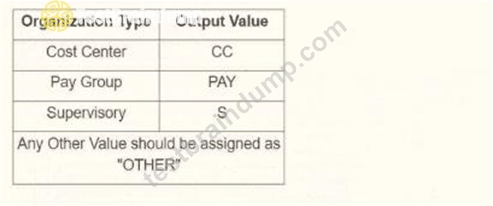
The vendor would also like to change the default document retention policy of 30 days to 7 days. What tasks do you need to use to configure this in your connector?
- A. Configure Integration Maps and Configure Integration Attributes
- B. Configure Integration Field Overrides and Configure Integration Attributes
- C. Configure Integration Maps and Configure Integration Field Attributes
- D. Configure Integration Field Overrides and Configure Integration Field Attributes
Answer: B
Explanation:
When creating an outbound connector using the Workday Core Connector: Organization Outbound template, you need to configure the connector to meet specific vendor requirements, such as formatting output data and adjusting document retention policies. Let's break down the question and analyze the requirements and options based on Workday's integration framework, specifically focusing on the Core Connector and its configuration tasks.
Understanding the Requirements
Output Data Formatting:The vendor has provided a table specifying how organization types should appear in the output file (e.g., Cost Center as "CC", Pay Group as "PAY", Supervisory as "S", and any other value as "OTHER"). This indicates a need to transform or map Workday organization data into specific output values, which is typically handled by configuring how fields are processed or mapped in the integration.
Document Retention Policy Change:The vendor wants to change the default document retention policy from 30 days to 7 days. In Workday, document retention policies for integrations (e.g., files stored on SFTP or other delivery methods) are managed through integration settings, specifically attributes related to file retention or delivery options.
Analyzing Workday Core Connector: Organization Outbound
The Core Connector: Organization Outbound template is a pre-built Workday integration template used to extract organization-related data (e.g., cost centers, pay groups, supervisory organizations) and send it to an external system. It leverages Workday's integration framework, including integration maps, field overrides, and attributes, to customize data output and behavior.
Integration Maps: Used to define how data is transformed or mapped from Workday to the output format, often involving XSLT or predefined mappings.
Integration Field Overrides: Allow you to override or customize how specific fields are displayed or formatted in the output, such as mapping "Cost Center" to "CC" as per the vendor's table.
Integration Attributes: Control broader integration settings, such as delivery methods, file formats, and retention policies (e.g., document retention duration).
Integration Field Attributes: Typically focus on specific field-level properties but are less commonly used for retention policies or broad mappings compared to the above options.
Evaluating the Vendor's Output Requirements
The table provided (Cost Center → "CC", Pay Group → "PAY", Supervisory → "S", any other value → "OTHER") suggests a need to transform or override the default output values for organization types. This is a field-level customization, best handled by Integration Field Overrides, which allow you to specify custom values or formats for specific fields in the output.
For example, in the Core Connector, you can use Integration Field Overrides to map the Workday organization type (e.g., "Cost_Center") to the vendor's desired output ("CC"). This is a common practice for outbound integrations where external systems require specific formatting.
Evaluating the Retention Policy Change
The default document retention policy of 30 days needs to be changed to 7 days. In Workday, retention policies for integration output files (e.g., files delivered via SFTP or email) are configured as part of the integration's attributes, not field-level settings.
Integration Attributes are used to manage integration-wide settings, including delivery options, file retention periods, and other global configurations. You can specify the retention period (e.g., 7 days) in the attributes section of the Core Connector configuration.
This is distinct from field-level overrides or maps, as retention is not tied to individual data fields but to the integration's output management.
Analyzing the Options
Now, let's evaluate each option to determine which tasks are needed to meet both requirements:
A . Configure Integration Maps and Configure Integration Attributes
Integration Maps: These are used for broader data transformations or mappings, such as converting Workday XML to another format or defining complex data relationships. While they could theoretically handle the output value mappings (e.g., Cost Center → "CC"), they are typically more complex and less granular than field overrides for simple value changes.
Integration Attributes: Correct for configuring the retention policy (e.g., changing from 30 to 7 days), as attributes manage integration-wide settings like retention.
Why Not Sufficient?: Integration Maps are overkill for simple field value overrides like the vendor's table, and field-level customization is better handled by Integration Field Overrides for precision and ease.
B . Configure Integration Field Overrides and Configure Integration Field Attributes Integration Field Overrides: Correct for mapping specific field values (e.g., Cost Center → "CC"), as they allow granular control over output formats for individual fields.
Integration Field Attributes: These are less commonly used and typically focus on field-specific properties (e.g., data type, length), not broad integration settings like retention policies. Retention is not managed at the field level, so this is incorrect for the retention requirement.
Why Not Sufficient?: Integration Field Attributes do not handle retention policies, making this option incomplete.
C . Configure Integration Field Overrides and Configure Integration Attributes Integration Field Overrides: Perfect for mapping the vendor's output values (e.g., Cost Center → "CC", Pay Group → "PAY", etc.), as they allow precise control over field-level output formatting.
Integration Attributes: Correct for configuring the retention policy (e.g., changing from 30 to 7 days), as attributes manage integration-wide settings like file retention.
Why Sufficient?: This combination addresses both requirements-field-level output formatting and integration-wide retention policy changes-making it the most accurate choice.
D . Configure Integration Maps and Configure Integration Field Attributes Integration Maps: As explained, these are better for complex transformations, not simple field value overrides like the vendor's table. They could work but are less efficient than field overrides.
Integration Field Attributes: As noted, these do not handle retention policies or broad integration settings, making them incorrect for the retention requirement.
Why Not Sufficient?: This combination fails to address retention effectively and uses Integration Maps when Integration Field Overrides would be more appropriate for the output formatting.
Conclusion
Based on the analysis, the vendor's requirements for output formatting (mapping organization types to specific values) and changing the retention policy (from 30 to 7 days) are best met by:
Integration Field Overrides: To customize the output values for organization types (e.g., Cost Center → "CC") as shown in the table.
Integration Attributes: To adjust the document retention policy from 30 days to 7 days.
NEW QUESTION # 32
Refer to the following scenario to answer the question below.
You have been asked to build an integration using the Core Connector: Worker template and should leverage the Data Initialization Service (DIS). The integration will be used to export a full file (no change detection) for employees only and will include personal data.
What configuration is required to output the value of a calculated field which you created for inclusion in this integration?
- A. Configure Integration Attributes.
- B. Configure Integration Maps.
- C. Configure Integration Field Attributes.
- D. Configure Integration Field Overrides.
Answer: D
Explanation:
The scenario involves a Core Connector: Worker integration using the Data Initialization Service (DIS) to export a full file of employee personal data, with a requirement to include a calculated field in the output.
Core Connectors rely on predefined field mappings, but custom calculated fields need specific configuration to be included. Let's analyze the solution:
* Requirement:Output the value of a calculated field created for this integration. In Workday, calculated fields are custom-built (e.g., using Report Writer or Calculated Fields) and not part of the standard Core Connector template, so they must be explicitly added to the output.
* Integration Field Overrides:In Core Connectors, Integration Field Overrides allow you to replace a delivered field's value or add a new field to the output by mapping it to a calculated field. This is the standard method to include custom calculated fields in the integration file. You create the calculated field separately, then use overrides to specify where its value appears in the output structure (e.g., as a new column or replacing an existing field).
* Option Analysis:
* A. Configure Integration Field Attributes: Incorrect. Integration Field Attributes refine how delivered fields are output (e.g., filtering multi-instance data like phone type), but they don't support adding or mapping calculated fields.
* B. Configure Integration Field Overrides: Correct. This configuration maps the calculated field to the output, ensuring its value is included in the exported file.
* C. Configure Integration Attributes: Incorrect. Integration Attributes define integration-level settings (e.g., file name, delivery protocol), not field-specific outputs like calculated fields.
* D. Configure Integration Maps: Incorrect. Integration Maps transform existing field values (e.g.,
"Married" to "M"), but they don't add new fields or directly output calculated fields.
* Implementation:
* Create the calculated field in Workday (e.g., via Create Calculated Field task).
* Edit the Core Connector: Worker integration.
* Navigate to the Integration Field Overrides section.
* Add a new override, selecting the calculated field and specifying its output position (e.g., a new field ID or overriding an existing one).
* Test the integration to confirm the calculated field value appears in the output file.
References from Workday Pro Integrations Study Guide:
* Core Connectors & Document Transformation: Section on "Configuring Integration Field Overrides" explains how to include calculated fields in Core Connector outputs.
* Integration System Fundamentals: Notes the use of overrides for custom data in predefined integration templates.
NEW QUESTION # 33
Refer to the following XML to answer the question below.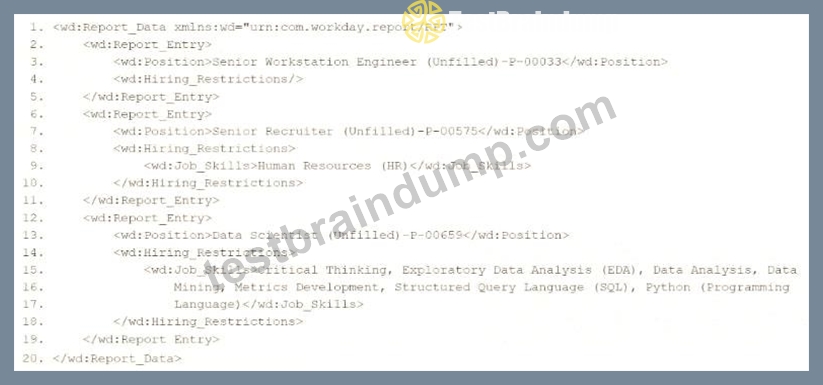
You are an integration developer and need to write X8LT to transform the output of an ElB which is using a web service enabled report to output position data along with hiring restrictions around skills. You currently have a template which matches on wd:Report Data/wd: Report .Entry for creating a record from each report entry.
Within the template which matches on wd:Report_Entry you would like to conditionally process the wd:
Job_Skills element by using a series of <xsl:if> elements so as to categorize the job skills data.
Assuming all jobs will have the wd:Job_Skills element, what XSLT syntax would be used to output the text HR Skills if the value of wd:Job_Skills contains the text HR and output NON-HR Skills if the value of wd:
Job_Skills does not contain the text HR?
- A.
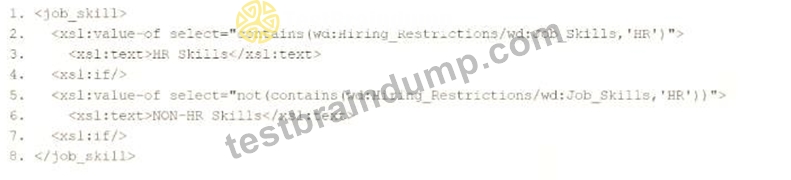
- B.
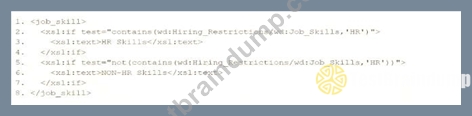
- C.
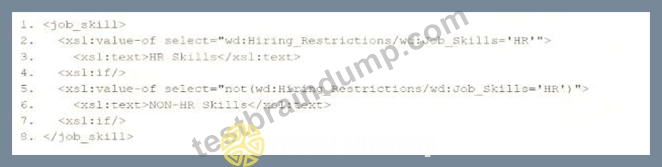
- D.
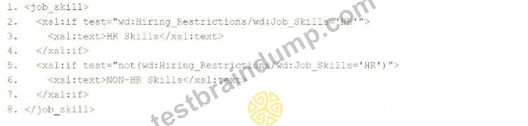
Answer: B
Explanation:
The task is to write XSLT within a template matching wd:Report_Data/wd:Report_Entry to categorize wd:
Job_Skills data, outputting "HR Skills" if the value contains "HR" and "NON-HR Skills" if it does not, using a series of <xsl:if> elements. The correct syntax must use the contains() function to check for the substring
"HR" within wd:Job_Skills, as the question implies partial matching (e.g., "HR Specialist" or "Senior HR"), not exact equality.
Let's analyze each option:
* Option A:
xml
<job_skill>
<xsl:value-of select="wd:Hiring_Restrictions/wd:Job_Skills='HR'">
<xsl:text>HR Skills</xsl:text>
<xsl:if/>
<xsl:value-of select="not(wd:Hiring_Restrictions/wd:Job_Skills='HR')">
<xsl:text>NON-HR Skills</xsl:text>
<xsl:if/>
</job_skill>
* Issues:
* <xsl:value-of> is misused here. It outputs the result of the expression (e.g., "true" or "false" for a comparison), not the conditional text. The <xsl:text> inside won't execute as intended.
* The = operator checks for exact equality (e.g., wd:Job_Skills must be exactly "HR"), not substring presence, which contradicts the requirement to check if "HR" is contained within the value.
* <xsl:if/> is malformed (self-closing without a test attribute) and misplaced.
* Verdict: Incorrect syntax and logic.
* Option B:
xml
<job_skill>
<xsl:value-of select="contains(wd:Hiring_Restrictions/wd:Job_Skills, 'HR')">
<xsl:text>HR Skills</xsl:text>
<xsl:if/>
<xsl:value-of select="not(contains(wd:Hiring_Restrictions/wd:Job_Skills, 'HR'))">
<xsl:text>NON-HR Skills</xsl:text>
<xsl:if/>
</job_skill>
* Issues:
* Similar to A, <xsl:value-of> outputs the boolean result of contains() ("true" or "false"), not the conditional text "HR Skills" or "NON-HR Skills."
* The <xsl:text> elements are inside invalid <xsl:if/> tags (self-closing, no test), rendering them ineffective.
* While contains() is correct for substring checking, the structure fails to meet the <xsl:if> requirement.
* Verdict: Incorrect structure despite using contains().
* Option C:
xml
<job_skill>
<xsl:if test="wd:Hiring_Restrictions/wd:Job_Skills='HR'">
<xsl:text>HR Skills</xsl:text>
</xsl:if>
<xsl:if test="not(wd:Hiring_Restrictions/wd:Job_Skills='HR')">
<xsl:text>NON-HR Skills</xsl:text>
</xsl:if>
</job_skill>
* Analysis:
* Uses <xsl:if> correctly with test attributes, satisfying the "series of <xsl:if> elements" requirement.
* However, wd:Job_Skills='HR' tests for exact equality, not whether "HR" is contained within the value. For example, "HR Specialist" would fail this test, outputting "NON-HR Skills" incorrectly.
* Verdict: Semantically incorrect due to exact matching instead of substring checking.
* Option D:
xml
<job_skill>
<xsl:if test="contains(wd:Hiring_Restrictions/wd:Job_Skills, 'HR')">
<xsl:text>HR Skills</xsl:text>
</xsl:if>
<xsl:if test="not(contains(wd:Hiring_Restrictions/wd:Job_Skills, 'HR'))">
<xsl:text>NON-HR Skills</xsl:text>
</xsl:if>
</job_skill>
* Analysis:
* Correctly uses <xsl:if> with test attributes, aligning with the question's requirement.
* The contains() function properly checks if "HR" is a substring within wd:Job_Skills (e.g.,
"HR Manager" or "Senior HR" returns true).
* not(contains()) ensures the opposite condition, covering all cases (mutually exclusive).
* <xsl:text> outputs the exact strings "HR Skills" or "NON-HR Skills" as required.
* Note: The closing tag </xs1:if> is a typo in the option (should be </xsl:if>), but in context, it's an obvious formatting error, not a substantive issue.
* Verdict: Correct logic and syntax, making D the best answer.
Correct Implementation in Context:
xml
<xsl:template match="wd:Report_Data/wd:Report_Entry">
<job_skill>
<xsl:if test="contains(wd:Hiring_Restrictions/wd:Job_Skills, 'HR')">
<xsl:text>HR Skills</xsl:text>
</xsl:if>
<xsl:if test="not(contains(wd:Hiring_Restrictions/wd:Job_Skills, 'HR'))">
<xsl:text>NON-HR Skills</xsl:text>
</xsl:if>
</job_skill>
</xsl:template>
* Example Input: <wd:Job_Skills>Senior HR Analyst</wd:Job_Skills> # Output: <job_skill>HR Skills<
/job_skill>
* Example Input: <wd:Job_Skills>IT Specialist</wd:Job_Skills> # Output: <job_skill>NON-HR Skills<
/job_skill>
References:
* Workday Pro Integrations Study Guide: "Configure Integration System - TRANSFORMATION" section, detailing <xsl:if> and contains() for conditional XSLT logic in Workday.
* Workday Documentation: "XSLT Transformations in Workday" under EIB, confirming wd: namespace usage and string functions.
* W3C XSLT 1.0 Specification: Section 9.1, "Conditional Processing with <xsl:if>," and Section 11.2,
"String Functions" (contains()).
* Workday Community: Examples of substring-based conditionals in XSLT for report transformations.
NEW QUESTION # 34
Refer to the following XML to answer the question below.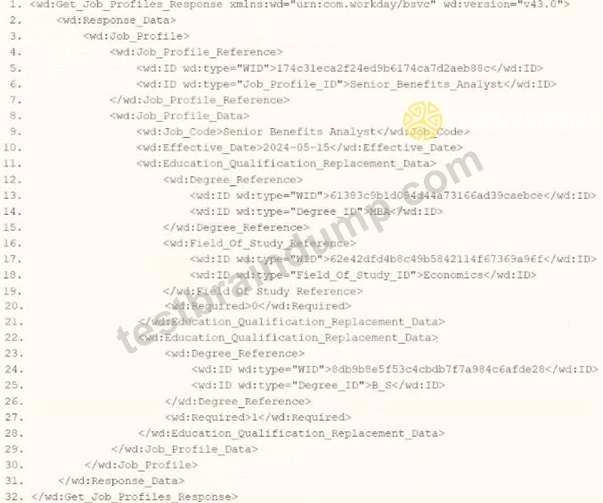
You are an integration developer and need to write XSLT to transform the output of an EIB which is making a request to the Get Job Profiles web service operation. The root template of your XSLT matches on the <wd:Get_Job_Profiles_Response> element. This root template then applies a template against <wd:Job_Profile>.
What XPath syntax would be used to select the value of the wd:Job_Code element when the <xsl:value-of> element is placed within the template which matches on <wd:Job_Profile>?
- A. wd:Job_Profile/wd:Job_Profile_Data/wd:Job_Code
- B. wd:Job_Profile_Reference/wd:ID[@wd:type='Job_Profile_ID']
- C. wd:Job_Profile_Data/wd:Job_Code
- D. wd:Job_Profile_Data[@wd:Job_Code]
Answer: C
Explanation:
As an integration developer working with Workday, you are tasked with transforming the output of an Enterprise Interface Builder (EIB) that calls the Get_Job_Profiles web service operation. The provided XML shows the response from this operation, and you need to write XSLT to select the value of the <wd:Job_Code> element. The root template of your XSLT matches on <wd:Get_Job_Profiles_Response> and applies a template to <wd:Job_Profile>. Within this template, you use the <xsl:value-of> element to extract the <wd:Job_Code> value. Let's analyze the XML structure, the requirement, and each option to determine the correct XPath syntax.
Understanding the XML and Requirement
The XML snippet provided is a SOAP response from the Get_Job_Profiles web service operation in Workday, using the namespace xmlns:wd="urn:com.workday/bsvc" and version wd:version="v43.0". Key elements relevant to the question include:
The root element is <wd:Get_Job_Profiles_Response>.
It contains <wd:Response_Data>, which includes <wd:Job_Profile> elements.
Within <wd:Job_Profile>, there are:
<wd:Job_Profile_Reference>, which contains <wd:ID> elements (e.g., a Job_Profile_ID).
<wd:Job_Profile_Data>, which contains <wd:Job_Code> with the value Senior_Benefits_Analyst.
The task is to select the value of <wd:Job_Code> (e.g., "Senior_Benefits_Analyst") using XPath within an XSLT template that matches <wd:Job_Profile>. The <xsl:value-of> element outputs the value of the selected node, so you need the correct XPath path from the <wd:Job_Profile> context to <wd:Job_Code>.
Analysis of Options
Let's evaluate each option based on the XML structure and XPath syntax rules:
Option A: wd:Job_Profile/wd:Job_Profile_Data/wd:Job_Code
This XPath starts from wd:Job_Profile and navigates to wd:Job_Profile_Data/wd:Job_Code. However, in the XML, <wd:Job_Profile> is the parent element, and <wd:Job_Profile_Data> is a direct child containing <wd:Job_Code>. The path wd:Job_Profile/wd:Job_Profile_Data/wd:Job_Code is technically correct in terms of structure, as it follows the hierarchy:
<wd:Job_Profile> → <wd:Job_Profile_Data> → <wd:Job_Code>.
However, since the template matches <wd:Job_Profile>, the context node is already <wd:Job_Profile>. You don't need to include wd:Job_Profile/ at the beginning of the XPath unless navigating from a higher level. Starting directly with wd:Job_Profile_Data/wd:Job_Code (Option C) is more concise and appropriate for the context. This option is technically valid but redundant and less efficient, making it less preferred compared to Option C.
Option B: wd:Job_Profile_Data[@wd:Job_Code]
This XPath uses an attribute selector ([@wd:Job_Code]) to filter <wd:Job_Profile_Data> based on an attribute named wd:Job_Code. However, examining the XML, <wd:Job_Profile_Data> does not have a wd:Job_Code attribute-it has a child element <wd:Job_Code> with the value "Senior_Benefits_Analyst." The [@attribute] syntax is used for attributes, not child elements, so this XPath is incorrect. It would not select the <wd:Job_Code> value and would likely return no results or an error. This option is invalid.
Option C: wd:Job_Profile_Data/wd:Job_Code
This XPath starts from wd:Job_Profile_Data (a direct child of <wd:Job_Profile>) and navigates to wd:Job_Code. Since the template matches <wd:Job_Profile>, the context node is <wd:Job_Profile>, and wd:Job_Profile_Data/wd:Job_Code correctly points to the <wd:Job_Code> element within <wd:Job_Profile_Data>. This path is:
Concise and appropriate for the context.
Directly selects the value "Senior_Benefits_Analyst" when used with <xsl:value-of>.
Matches the XML structure, as <wd:Job_Profile_Data> contains <wd:Job_Code> as a child.
This is the most straightforward and correct option for selecting the <wd:Job_Code> value within the <wd:Job_Profile> template.
Option D: wd:Job_Profile_Reference/wd:ID[@wd:type='Job_Profile_ID']
This XPath navigates to <wd:Job_Profile_Reference> (a child of <wd:Job_Profile>) and then to <wd:ID> with an attribute wd:type="Job_Profile_ID". In the XML, <wd:Job_Profile_Reference> contains:
<wd:ID wd:type="WID">1740d3eca2f2ed9b6174ca7d2ae88c8c</wd:ID>
<wd:ID wd:type="Job_Profile_ID">Senior_Benefits_Analyst</wd:ID>
The XPath wd:Job_Profile_Reference/wd:ID[@wd:type='Job_Profile_ID'] selects the <wd:ID> element with wd:type="Job_Profile_ID", which has the value "Senior_Benefits_Analyst." However, this is not the <wd:Job_Code> value-the <wd:Job_Code> is a separate element under <wd:Job_Profile_Data>, not <wd:Job_Profile_Reference>. The question specifically asks for the <wd:Job_Code> value, so this option is incorrect, as it selects a different piece of data (the job profile ID, not the job code).
Why Option C is Correct
Option C, wd:Job_Profile_Data/wd:Job_Code, is the correct XPath syntax because:
It starts from the context node <wd:Job_Profile> (as the template matches this element) and navigates to <wd:Job_Profile_Data/wd:Job_Code>, which directly selects the <wd:Job_Code> element's value ("Senior_Benefits_Analyst").
It is concise and aligns with standard XPath navigation in XSLT, avoiding unnecessary redundancy (unlike Option A) or incorrect attribute selectors (unlike Option B).
It matches the XML structure, where <wd:Job_Profile_Data> is a child of <wd:Job_Profile> and contains <wd:Job_Code> as a child.
When used with <xsl:value-of select="wd:Job_Profile_Data/wd:Job_Code"/> in the template, it outputs the job code value, fulfilling the requirement.
Practical Example in XSLT
Here's how this might look in your XSLT:
xml
WrapCopy
<xsl:template match="wd:Job_Profile">
<xsl:value-of select="wd:Job_Profile_Data/wd:Job_Code"/>
</xsl:template>
This would output "Senior_Benefits_Analyst" for the <wd:Job_Code> element in the XML.
Verification with Workday Documentation
The Workday Pro Integrations Study Guide and SOAP API Reference (available via Workday Community) detail the structure of the Get_Job_Profiles response and how to use XPath in XSLT for transformations. The XML structure shows <wd:Job_Profile_Data> as the container for job profile details, including <wd:Job_Code>. The guide emphasizes using relative XPath paths within templates to navigate from the matched element (e.g., <wd:Job_Profile>) to child elements like <wd:Job_Profile_Data/wd:Job_Code>.
Workday Pro Integrations Study Guide Reference
Section: XSLT Transformations in EIBs - Describes using XSLT to transform web service responses, including selecting elements with XPath.
Section: Workday Web Services - Details the Get_Job_Profiles operation and its XML output structure, including <wd:Job_Profile_Data> and <wd:Job_Code>.
Section: XPath Syntax - Explains how to navigate XML hierarchies in Workday XSLT, using relative paths like wd:Job_Profile_Data/wd:Job_Code from a <wd:Job_Profile> context.
Workday Community SOAP API Reference - Provides examples of XPath navigation for Workday web service responses.
Option C is the verified answer, as it correctly selects the <wd:Job_Code> value using the appropriate XPath syntax within the <wd:Job_Profile> template context.
NEW QUESTION # 35
......
Workday Exam 2026 Workday-Pro-Integrations Dumps Updated Questions: https://www.testbraindump.com/Workday-Pro-Integrations-exam-prep.html
Free UPDATED Workday Workday-Pro-Integrations Certification Exam Dumps is Online: https://drive.google.com/open?id=1gV-94ecmJ9OddW2OE5Tnfwj5V-Y-cJUO
